
Dec 15, 2025
Donation Tracking with Google Ads
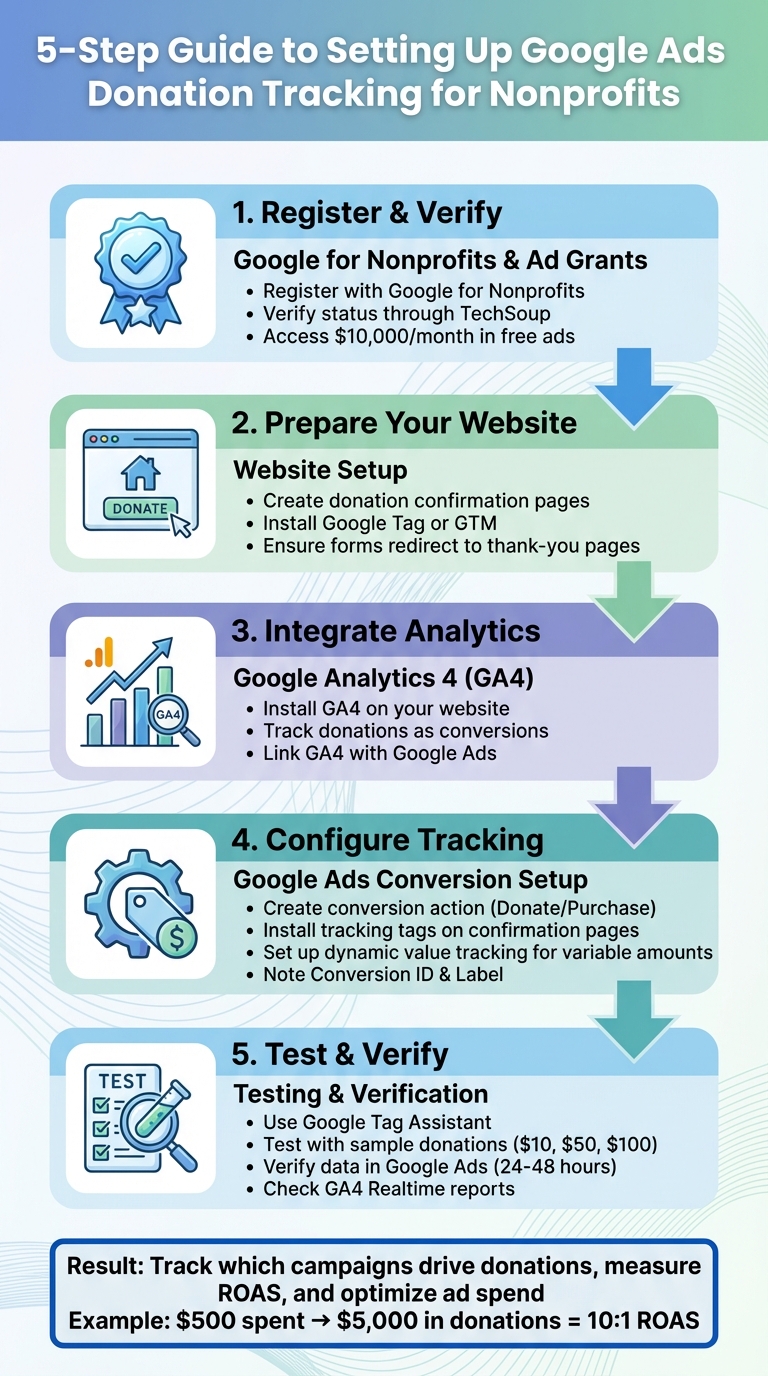
Donation tracking in Google Ads ties ad clicks to completed donations, enabling nonprofits to measure campaign performance effectively. By tracking metrics like donation amounts and transaction IDs, organizations can optimize their ad spend and improve fundraising outcomes. For nonprofits utilizing the Google Ad Grant program, accurate tracking is mandatory to meet compliance and demonstrate results.
Here’s a quick overview of what’s required:
- Google for Nonprofits & Ad Grants: Register, verify nonprofit status, and set up accounts to access $10,000/month in free ads.
- Website Setup: Include donation confirmation pages to trigger tracking.
- Google Analytics 4 (GA4): Integrate GA4 to track donations as conversions and link it with Google Ads.
- Donation Tracking in Google Ads: Configure conversion actions, install tracking tags, and set up dynamic value tracking for variable donation amounts.
- Testing & Verification: Use tools like Google Tag Assistant and test sample donations to ensure accuracy.
Tracking donations allows nonprofits to analyze campaign performance, improve conversion rates, and allocate budgets more effectively. With proper setup, Google Ads becomes a powerful tool for increasing donations and ROAS (e.g., $500 spent generating $5,000 in donations = 10:1 ROAS). Regular analysis of metrics like conversion rate, cost per conversion, and ROAS ensures campaigns deliver measurable results.
5-Step Guide to Setting Up Google Ads Donation Tracking for Nonprofits
Google Ad Grant 2025 Updates (Part 3): Conversion Tracking
Prerequisites for Setting Up Donation Tracking
Before diving into the technical setup, make sure you have the essentials in place. These include your account setup, website configuration, and integrating Google Analytics 4 (GA4). Together, these steps create the foundation for tracking donations accurately.
Google for Nonprofits and Google Ads Account

Start by registering with Google for Nonprofits to access the Google Ad Grant, which offers up to $10,000 per month in ad credits. To get started, verify your nonprofit status through TechSoup. Once approved, log into your Google for Nonprofits dashboard, activate the Google Ad Grant, and complete the pre-qualification steps needed to set up your Google Ads account for conversion tracking. When configuring donation actions, categorize them as "purchase/sale" to align with Google's reporting standards and ensure compliance with grant requirements. This step is key to properly attributing donations to your campaigns.
Website and Donation Confirmation Pages
Your website must include dedicated donation confirmation pages. These pages trigger tracking pixels or tags when a donation is completed, capturing critical data like transaction amounts and unique IDs. Without these pages, Google Ads cannot verify donation activity, leading to inaccurate metrics. If you're using WordPress, consider plugins that automate eCommerce tracking. Ensure your donation forms redirect users to these confirmation pages and that your site supports Google Tag or Google Tag Manager for handling variable donation amounts. This setup is essential for precise tracking of donations.
Google Analytics 4 Integration
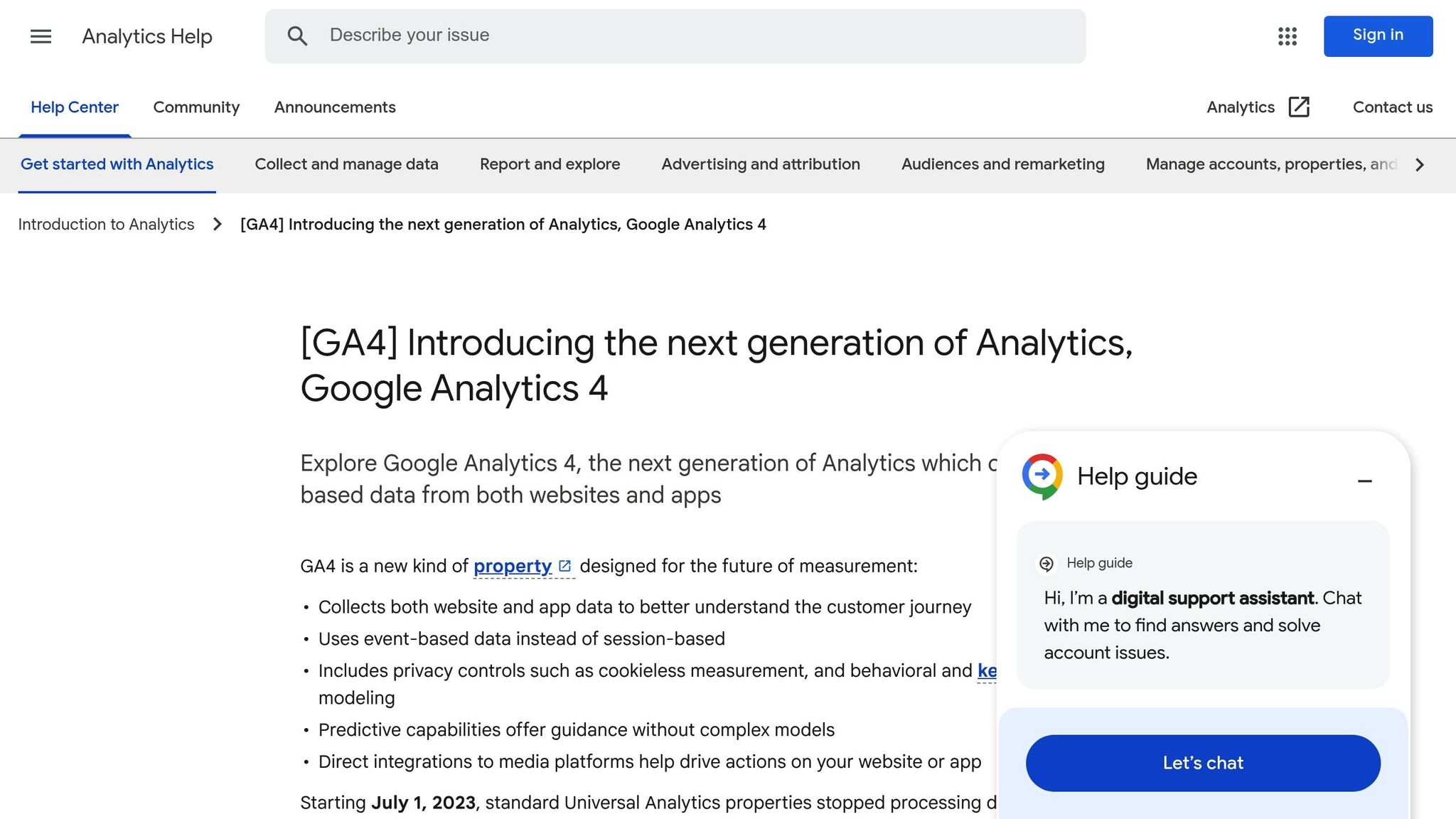
Integrating Google Analytics 4 (GA4) is a must for nonprofits using Google Ad Grants. GA4 tracks user actions, such as completed donations, and imports them as conversions into Google Ads. Install GA4 on your website - WordPress users can simplify this process with plugins that support authentication and eCommerce tracking. By treating donations as transactions, GA4 provides valuable insights, including average donation amounts, total donations, and the effectiveness of referral sources. Misconfiguring GA4 or skipping this step can result in incomplete data, which could distort your campaign metrics and jeopardize compliance with Google Ad Grants policies. Accurate data attribution starts here.
How to Set Up Donation Tracking in Google Ads
Once you’ve got everything ready, it’s time to configure donation tracking in Google Ads. This process connects your donation data to actionable insights for your campaigns. You’ll need to create a conversion action, install the tracking code, and set up dynamic value tracking to account for different donation amounts.
Creating a Conversion Action in Google Ads
Start by navigating to Tools & Settings > Measurement > Conversions in Google Ads. Click on New conversion action and choose Website. Give the conversion a clear name, such as “Online Donation – Main Form (USD).” For the category, select Donate (or Purchase/Sale if you’re following Ad Grant compliance rules).
When setting the value, choose Use different values for each conversion if you want to track the actual donation amounts dynamically. Alternatively, pick Use the same value for each conversion and assign a fixed average amount, like $50.00. Under the count setting, opt for Every, as each donation has financial significance and should be tracked individually. Set the click-through conversion window to at least 30 days to account for donors who take time to decide. Choose a last-click or data-driven attribution model, depending on your analytics setup. Make sure to note down your Conversion ID and Conversion Label - you’ll need these for the next steps.
Installing the Google Tag on Your Website
After setting up your conversion action, you’ll need to implement the tracking tags on your website. Place the gtag.js or Google Tag Manager (GTM) container in your site’s global header to ensure it loads across all pages. Configure the event to trigger only on the donation confirmation page. For instance, you can set it to fire on a specific thank-you URL, such as https://www.example.org/donate/thank-you. This ensures only completed donations are tracked, avoiding inflated numbers from incomplete forms or casual visitors.
If you’re using Google Tag Manager, create a Google Ads Conversion Tracking tag. Input your Conversion ID and Label, and set a trigger to fire when the thank-you page loads or when a custom “Donation Complete” event occurs. For WordPress users, plugins can simplify this process by automating eCommerce tracking.
Setting Up Variable Donation Amounts
To capture the exact value of each donation, dynamic tracking is a must. This ensures accuracy and aligns with your GA4 integration. Start by passing the donation amount dynamically to Google Ads. Use the data layer to map the donation value to the Conversion value field. In Google Tag Manager, create variables like {{Fundraise Up Donation Amount}}, {{Fundraise Up Donation ID}}, and {{Fundraise Up Donation Currency}} to pull these values from the data layer. Then, configure your conversion tag to use the donation amount variable for the Conversion value, the donation ID as the Transaction ID, and USD as the currency code.
If dynamic tracking feels too complex, you can opt for a simpler method: assign fixed values to separate thank-you URLs for common donation levels. While this approach works for smaller organizations with limited resources, it’s less precise and harder to manage as your organization grows. For mid-sized nonprofits in the U.S., dynamic tracking using GTM or integrated platforms offers much better insights and long-term benefits. Always ensure donation values are formatted in U.S. currency (e.g., $1,234.56) and use USD as the currency code throughout your setup.
Connecting Google Analytics 4 with Google Ads
Linking your Google Analytics 4 (GA4) property to your Google Ads account creates a seamless flow of donation data. This connection lets you pinpoint which campaigns and keywords drive donations while enabling conversion-focused bidding strategies to make your fundraising efforts more effective. The process involves three key steps: linking the accounts, designating donation events as conversions in GA4, and importing those conversions into Google Ads. Here's how you can set it up.
Linking GA4 to Google Ads
Before you start, ensure you have admin access to both your GA4 property and your Google Ads account. In GA4, head to Admin, then navigate to Product links → Google Ads links, and click Link. Select your Google Ads account ID from the list and confirm the link group.
To maximize the integration, enable Personalized advertising and Auto-tagging so Google Ads can use GA4 data for bidding and remarketing. Additionally, activate Google Signals to improve cross-device tracking. Once everything is set, save and publish the link to start sharing data between the platforms.
Marking Donation Events as Conversions
Once the accounts are linked, the next step is to mark your donation events as conversions in GA4. Go to Configure → Events and find the event that tracks donation completions - this is often named donation_complete or purchase if you’re using eCommerce tracking. Toggle the Mark as key event (or Mark as conversion) switch for this event.
Be sure the event includes parameters like value, currency, and transaction_id. These details allow Google Ads to measure the actual revenue generated by each campaign, providing more than just a count of conversions.
Importing Conversions into Google Ads
To bring your GA4 conversions into Google Ads, go to Tools & Settings → Measurement → Conversions, click the + button, and choose Import from GA4 properties (Web). Select your donation event (e.g., donation_complete) and configure the settings: set the value to use different values per conversion, count to One, and the conversion window to 30 days.
Once everything is set up, check that the conversion status in Google Ads shows "Recording conversions". To ensure everything works as expected, test the setup by making a small donation (e.g., $5.00) and verifying that the value appears correctly in your reports. With this final step, your donation metrics are now ready to guide your ad optimizations effectively.
sbb-itb-deea482
Testing and Verifying Your Donation Tracking
Before launching any campaigns, it's crucial to confirm that your donation tracking is working as expected. This ensures your data is accurate and prevents issues that could impact your campaign performance. A few test donations and the proper tools can help you verify everything is set up correctly.
Using Google Tag Assistant for Verification
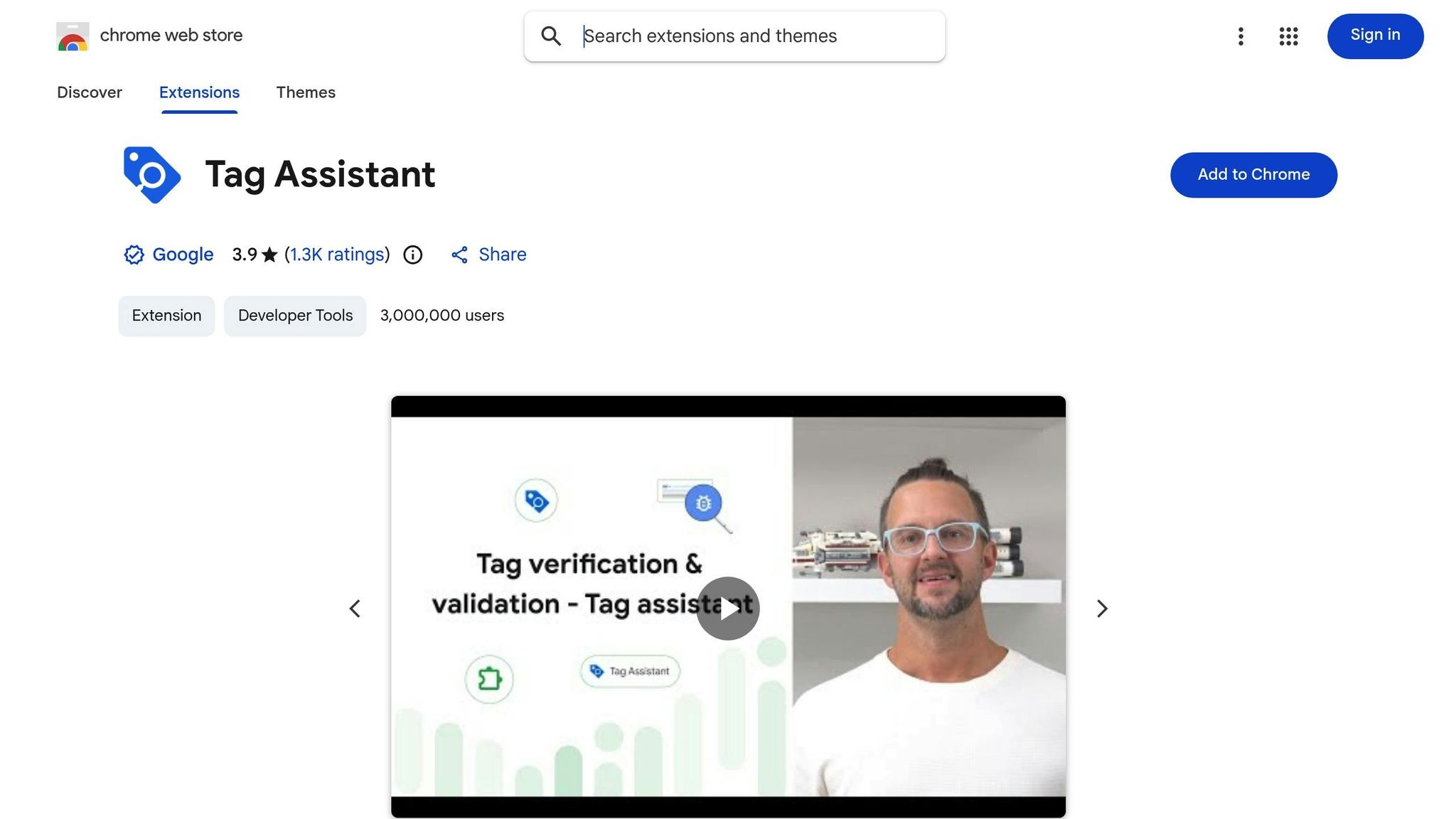
Google Tag Assistant, a free Chrome extension, helps you confirm if your Google tags are installed and firing properly. You can download it from the Chrome Web Store. Once installed, visit your donation confirmation page (e.g., yoursite.org/thank-you) and reload it. The extension should display a green checkmark, indicating proper functionality. It also provides details like your tag ID and event parameters - such as transaction_id and value - letting you verify that a $50.00 donation is correctly recorded in USD.
To go further, open Tag Assistant via tagassistant.google.com or your browser's extensions menu. Enable real-time validation and complete a test donation. For example, navigate to your confirmation page (e.g., example.org/thank-you?donation_id=123&amount=100.00) and check the summary to ensure your Google Ads conversion tag is firing with the correct Conversion ID, Label, and value. Testing in incognito mode can help avoid cached data interfering with results.
Once you've confirmed your tags are performing as expected, proceed to test sample donations to validate complete conversion tracking.
Testing Conversions with Sample Donations
Simulating actual donations is a key step to ensure that different donation amounts - whether $10.00 or $500.00 - are tracked accurately. Without this testing, errors in your data could lead to ineffective campaign optimization and wasted Google Ad Grants budget. Perform three to five test donations with varying amounts (e.g., $10.00, $50.00, and $100.00). Then, check your Google Ads account under Tools & Settings > Conversions to confirm that the test donations appear within 24–48 hours. Verify that they display the correct value, transaction ID, currency (USD), and count set to "One."
You can run these tests on a staging environment or use form previews. If you're working with Google Tag Manager, enable Preview mode to monitor tags firing on events like "Fundraise Up Donation Complete." For example, you might see variables such as {{Fundraise Up Donation Amount}} = 50.00 USD. After testing, allow 24 hours to pass and then check that the conversions have been imported into Google Ads. You can also use GA4's Realtime reports to confirm that events are being recorded live.
Troubleshooting Common Issues
If your tests don't yield the expected results, there are steps you can take to pinpoint and resolve the problem. Start by using Google Tag Assistant on your confirmation page to ensure the tag is firing. Then, open GA4 and navigate to Realtime > Events to check for the 'purchase' or custom donation event with the correct parameters. Make sure your GA4 property is linked to Google Ads under Linked accounts > Google Analytics, and confirm your conversion settings are configured to track dynamic USD amounts and count "One" per donation.
Common problems include tags not firing (check installation via Tag Assistant or GTM Preview), missing conversion data (ensure GA4 events are imported with a 30-day view-through window), or incorrect values (map dynamic variables like donation amounts to proper USD decimals, e.g., 100.50). Ensure each transaction_id is unique - using variables like {{Fundraise Up Donation ID}} can help. If data doesn’t appear within 24 hours, consider factors like ad blockers, cookie consent settings, or unpublished changes in GTM. Most issues stem from untriggered events or privacy-related blockers.
Analyzing and Improving Donation Performance
Once your donation tracking is set up, the next step is to dive into performance analysis. This is where you can fine-tune your campaigns to get the most out of your fundraising efforts. Google Ads provides several key metrics that reveal whether your campaigns are effectively driving donations without overspending. Pay close attention to conversions (total tracked donations), conversion rate (percentage of clicks that result in donations), cost per conversion (ad spend divided by the number of donations), conversion value (total donation amounts), and return on ad spend (ROAS) - calculated by dividing the total donation value by ad spend. For instance, if you spend $1,000 and generate $5,000 in donations, your ROAS is 5.0 (or 500%).
To set realistic goals, use your historical data as a guide. Start by calculating your average online donation (e.g., $75) and the first-year donor value (which could include recurring gifts and upgrades, perhaps totaling $150). From there, aim for a target cost per donation that’s lower than the first-year value - for example, $30–$50 if your first-year value is $150. Many nonprofits begin with a break-even ROAS of 1.0 and work toward 3–5x as their campaigns mature. Update these benchmarks quarterly as you gather more data from GA4 and Google Ads. This analysis lays the groundwork for strategic adjustments that can improve your campaign efficiency.
Evaluating Key Metrics in Google Ads
To get a clear picture of how your campaigns are performing, head to the Campaigns section in Google Ads and add columns for Conversions, Conversion value, Cost/conv., and ROAS. This setup helps you quickly spot which campaigns are excelling and which ones are draining your budget. Use the Segments → Conversion action filter to separate out pure donation conversions from other actions, like newsletter sign-ups.
In GA4, check Reports → Monetization → Ecommerce purchases (if donations are tracked as purchase events) to see revenue broken down by channel and campaign. Also, use Acquisition → Traffic acquisition to confirm whether paid search is bringing in new donors compared to organic or direct traffic.
Make it a habit to review these reports monthly. Look for trends in donation volume and ROAS, and watch for warning signs like rising costs per donation or a drop in conversion rates. This regular review allows you to make timely adjustments to bids, budgets, or landing pages before minor issues escalate into costly problems.
Segmenting Data by Campaigns and Keywords
Segmentation is a powerful tool for refining your campaign strategy. By examining Campaigns, Ad groups, and Search keywords with metrics like Conversions, Conversion value, Conv. rate, Cost/conv., and ROAS, you can pinpoint where your campaigns are succeeding and where they need improvement. For example, campaigns with above-average ROAS or low costs per donation are good candidates for increased budgets. On the other hand, keywords with high costs and low conversions may need bid adjustments or even pausing.
In GA4, you can take this further by adding secondary dimensions like Campaign or Source / Medium to see how donation revenue is distributed across your Google Ads campaigns. This helps you distinguish, for instance, between a branded "[Organization Name] donate" campaign with a 10% conversion rate and high ROAS versus a generic "volunteer opportunities" campaign that might bring traffic but few donations.
You can also segment by device (mobile vs. desktop), geography (state or metro area), and time (day and hour) to uncover donation patterns. If certain regions or time periods perform well, consider allocating more resources there. Conversely, reduce exposure in areas that aren’t delivering results unless they’re mission-critical.
Using Insights to Improve Campaigns
Armed with these metrics, you can make smarter decisions about where to allocate your budget and how to adjust bids. Shift funds away from campaigns or keywords with high costs per donation and direct them toward those with better ROAS or conversion rates - especially for high-intent terms like "donate" or "support." Use the Search terms report to identify intent-rich keywords and add irrelevant terms (e.g., "jobs", "free", "definition") as negative keywords to avoid wasting clicks.
For campaigns with sufficient conversion data, try using Target CPA or Target ROAS automated bidding to let Google optimize for your donation goals. Test A/B variations of your ad copy to see what resonates most with donors - whether it’s impact stories, matching gift offers, or recurring giving options. Use GA4 behavior metrics and funnel analysis to refine your landing pages, focusing on simplifying forms, improving mobile usability, and making calls-to-action crystal clear.
Reactivation is cheaper than acquisition.
Don’t overlook the value of remarketing campaigns. Targeting past visitors or lapsed donors often delivers higher conversion rates and better ROAS compared to prospecting campaigns, making it a cost-effective way to boost donations.
How Share Services Supports Nonprofit Growth
Once your donation tracking is set up, the next step is to transform that data into actionable strategies for fundraising success. Share Services offers the expertise and hands-on support nonprofits need to convert Google Ads metrics into meaningful fundraising results. They focus on organizations with annual revenues between $1–$20M - groups that often outgrow basic DIY tools but aren't ready to invest in full-time digital marketing staff or expensive agency contracts.
Building on your existing tracking setup, Share Services helps maximize your fundraising impact. They collaborate with your team to fine-tune the technical aspects of Google Ads donation tracking and ensure everything runs smoothly. Their services include configuring donation tracking, managing Google Ad Grants, and providing expertise in Google Analytics and Tag Manager. This ensures accurate data collection, with tags properly set up for variable donation amounts, transaction IDs, and U.S. dollar formatting ($X,XXX.XX).
But they don’t stop at technical fixes. Share Services goes a step further by weaving these insights into your overall fundraising strategy. They analyze your data to pinpoint what’s working - like which campaigns or keywords lead to higher donation values - and highlight areas for improvement, such as underperforming landing pages. They also help you reallocate your budget to boost your return on ad spend, focusing on donor acquisition and retention rather than just tracking clicks.
This strategic approach has delivered real results for nonprofit partners. Kyle Birch, Director of Communications at one organization, shared: "If I was actually doing this project, it would have taken me half a year, and Share was able to do it in a couple of months. And that's something we wouldn't have been able to do with our small staff." Jasmine Morse from an Advancement Department added: "Share helped us test simplified + focused messaging that improved our conversion rates. Additionally, paid display ad retargeting was successful, and the recurring giving pop-up brought us almost 100 new monthly gifts. We've continued to see success with both of these strategies in other campaign efforts."
To keep the momentum going, Share Services offers strategy retainers that include weekly strategy sessions and KPI reporting. These ensure your team stays informed and confident when analyzing reports, making budget decisions, and staying compliant with Google Ad Grants. They also provide documentation tailored to U.S. standards and work closely with your staff to build a digital fundraising program that evolves alongside your mission.
Conclusion
Tracking donations in Google Ads gives you a clear view of which campaigns and keywords are driving contributions, while also showing your actual fundraising performance in U.S. dollars. This transparency allows you to make smarter, more strategic adjustments to your campaigns.
With accurate tracking, you can uncover the true impact of your digital fundraising. It helps pinpoint top-performing campaigns, reallocate budgets wisely, test new landing pages or donation amounts, and consistently improve conversion rates. By reviewing your data regularly - whether monthly or during key fundraising periods like year-end drives - you can turn your tracking setup into a powerful optimization tool that maximizes every advertising dollar.
Using tools like Google Tag Assistant and GA4 reports, you can translate tracking data into actionable insights. These insights not only improve campaign performance but also provide clear, data-driven updates for your board and leadership. This strengthens the case for maintaining or even increasing your digital marketing budget. By regularly analyzing your tracking data, you create a feedback loop that connects testing, troubleshooting, and review into a cycle of continuous improvement.
When paired with the right expertise, your tracking data can take your fundraising strategy to the next level. Share Services specializes in helping nonprofits with annual revenues between $1–$20M turn their tracking insights into actionable strategies. From refining donation asks and testing new messaging to creating multi-channel donor journeys, their expertise ensures your data drives meaningful growth for your mission.
Every tracked donation is a step toward achieving your goals. Use accurate data to fine-tune your campaigns, grow your support base, and amplify your impact.
FAQs
How can nonprofits track donations effectively using Google Ads?
To keep tabs on donations through Google Ads, nonprofits should implement conversion tracking. This involves adding the Google Ads conversion tracking code or using Google Tag Manager on their donation confirmation pages. This setup ensures each completed donation is properly logged.
Regularly testing and confirming that tracking tags are working as intended is crucial. This guarantees donations are attributed to the correct campaigns. Additionally, combining Google Ads with Google Analytics offers a more detailed view of performance. Nonprofits can analyze donation patterns, fine-tune campaigns, and measure their overall effectiveness with greater accuracy.
How can I set up donation tracking with Google Analytics 4 and Google Ads?
To track donations using Google Analytics 4 (GA4) and Google Ads, start by connecting your GA4 property to your Google Ads account through the Admin settings. Make sure to turn on auto-tagging in Google Ads to ensure data flows seamlessly between the two platforms.
Next, set up conversion events in GA4 to monitor donation-related actions, like completed transactions or button clicks. Once these events are configured, import them into Google Ads so you can analyze how your campaigns are performing.
Before going live, test your setup by completing a few test donations to confirm that everything is being tracked accurately.
How does dynamic value tracking help measure donations more accurately in Google Ads?
Dynamic value tracking in Google Ads enables the platform to record exact donation amounts in real time. This feature is particularly helpful for nonprofits, where donation amounts can differ widely. By capturing this data, organizations can measure campaign performance more precisely, calculate accurate ROI, and gain clearer insights into the effectiveness of their fundraising efforts.
Related Blog Posts
Get helpful resources, straight to your inbox
We love sharing tools, ideas, and stories that make nonprofit work a little lighter and a lot more effective. Sign up below and we’ll send you practical tips, free resources, and a bit of encouragement—because the work you’re doing matters.
No spam. Just good stuff for good people.