

Dec 16, 2025
How To Use Google Analytics For Donor Insights
Google Analytics 4 (GA4) can transform how nonprofits understand donor behavior. It tracks visitor actions - like donations, sign-ups, or event registrations - helping organizations identify what drives results. With GA4, you can analyze traffic sources, campaign performance, and donor journeys, all while uncovering trends like peak donation times or average gift amounts. Here’s what you can achieve:
- Track Key Metrics: Monitor donations, recurring gifts, and engagement.
- Set Up Events: Capture actions like completed donations or newsletter sign-ups.
- Optimize Campaigns: Use data to improve messaging, forms, and outreach.
- Link Tools: Combine GA4 with Google Ad Grants to measure ad-driven donations.
- Explore Donor Journeys: Use funnels and reports to reduce drop-offs and boost conversions.
For faith-based nonprofits, leveraging GA4 can make fundraising efforts more effective and data-driven. Whether it’s setting up conversion tracking or analyzing donor retention, GA4 provides actionable insights to grow donor relationships and maximize impact.
Maximizing Nonprofit Impact with Google Analytics : A Step by Step Guide
Setting Up Google Analytics 4 for Your Nonprofit
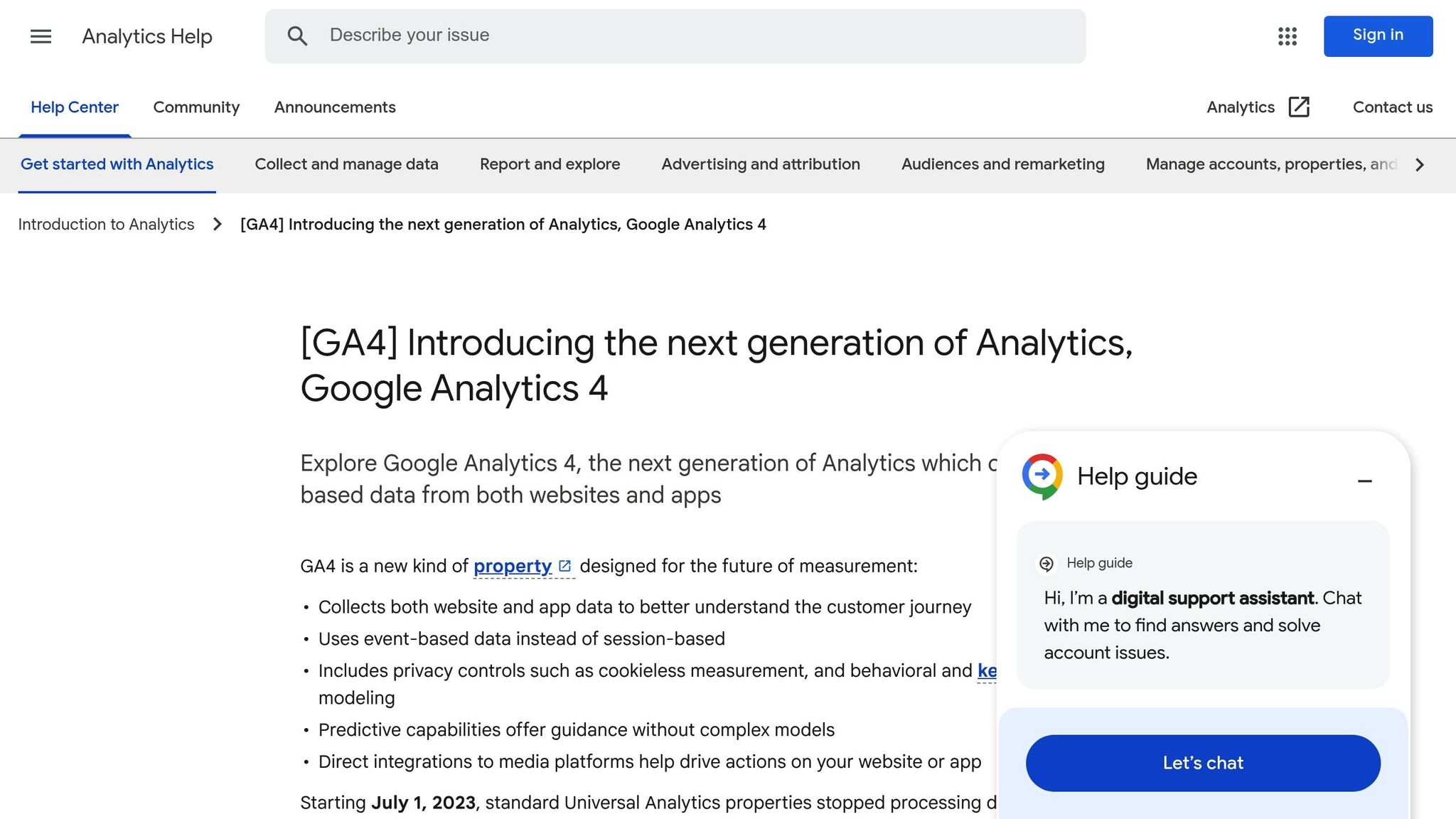

Google Analytics 4 Setup Guide for Nonprofits
To get started with GA4, you’ll need to create a property, install the tracking code, and - if applicable - link it to your Google Ad Grants account. A proper setup is key to uncovering valuable donor insights. Did you know that over 60% of nonprofit websites don’t use tracking tools? Without tracking, it’s nearly impossible to understand where your donors are coming from or what drives them to support your cause.
Creating a GA4 Property
First, log into Google Analytics using an account with admin access. From there, click "Admin" and then "Create Property." Enter your nonprofit's website URL and a descriptive name, like "FaithChurch.org GA4." Be sure to select the correct time zone and set the currency to USD to ensure accurate donation tracking. Once you click "Create," you’ll receive a unique measurement ID (formatted like G-XXXXXXX). Choose the "Web" data stream option to proceed. Afterward, install and verify the tracking code to start collecting data.
Installing and Verifying the GA4 Tracking Code
Copy your GA4 measurement ID from the Data Streams section. If your site is built on WordPress, you can use plugins like MonsterInsights or Site Kit by Google to easily add the tracking code. For platforms like Squarespace or Wix, go to Settings > Advanced > Google Analytics, and paste your ID - no need to edit any code. If you use a donation platform like Donorbox, simply enter your measurement ID under Settings > Integrations > Google Analytics to automatically track donation forms and amounts in USD.
Once the tracking code is installed, it’s time to verify that it’s working. Open GA4’s Real-Time report and look for events like "ga_session_start" or "page_view" while browsing your site in an incognito window. For a quick verification, you can also use the Google Tag Assistant Chrome extension. After confirming that data is flowing correctly, you’re ready to link GA4 with your Google Ad Grants account for even deeper insights.
Linking Google Analytics to Google Ad Grants
If your nonprofit has been approved for Google Ad Grants - which gives you $10,000 per month in free advertising - connecting it to GA4 is a game-changer. This integration lets you track the keywords that bring in donations. To set it up, log into Google Analytics, go to Admin > Product Links > Google Ad Grants, click "Link," and select your Ad Grants account. This will allow you to follow the entire donor journey, from clicking an ad to completing a donation. You can use this data to identify the most effective keywords and target areas, helping you make the most of your ad budget.
A common pitfall to avoid is installing duplicate tracking codes, as this can inflate your metrics and skew your donor data. It’s also important to exclude internal traffic from your reports. To do this, go to Admin > Data Streams > More Tagging Settings, and create filters to block internal IP addresses. By focusing solely on real supporter behavior, you’ll get the most accurate insights for your nonprofit.
Setting Up Events and Conversions for Donor Tracking
Once your GA4 property is ready, the next step is setting up events to track how donors interact with your site. In GA4, every user action is recorded as an event. For faith-based nonprofits, some key events to monitor include completed donations (with amounts in USD), donation button clicks or taps, form submissions (volunteer applications, prayer requests), newsletter sign-ups, and event registrations. These events help you understand donor behavior and measure the success of your fundraising efforts.
Marking key events as conversions is crucial. Conversions represent actions that directly align with your mission - like a completed donation, a new recurring donor, or a volunteer sign-up. GA4 allows you to designate up to 30 events as conversions. Simply go to Admin → Conversions and toggle the relevant events on. This setup provides insights into how many users completed these actions, which traffic sources drove them, and the revenue generated. Without marking these events as conversions, you’ll miss out on some of GA4’s most insightful reporting tools.
Tracking Donation Completions
For nonprofits, the donation completion event is the most critical. To track it effectively, set up a GA4 event - commonly named purchase or donation_complete - that triggers on the thank-you or confirmation page displayed after a successful transaction. This page should have a unique URL (e.g., /thank-you-donation) to avoid triggering the event accidentally. Include parameters like value (e.g., 50.00), currency ("USD"), transaction_id, donation_type, and fund to enable detailed reporting.
Many platforms, such as Donorbox, Classy, or Bloomerang, offer built-in GA4 integrations that automatically send donation events with all the necessary parameters. If your platform supports this, enable the feature in your settings and confirm the events appear in GA4’s Realtime report. For custom donation forms, use Google Tag Manager to trigger the event when the confirmation page loads. Once the event is reliably firing, go to Admin → Conversions and mark it as a conversion. This ensures every completed donation is reflected in your revenue and conversion reports, formatted with the $ symbol and U.S. number conventions.
Tracking Form Submissions and Newsletter Sign-Ups
In addition to donations, tracking form submissions and newsletter sign-ups is essential for measuring engagement and growing your donor base. The setup process depends on how your forms operate. If a form redirects users to a unique thank-you page (e.g., /thank-you-newsletter), you can create a custom event tied to that page view, such as newsletter_signup, and mark it as a conversion. For forms that use AJAX and don’t redirect, you can use Google Tag Manager to fire events when the form successfully validates.
It’s helpful to track different types of forms - like volunteer applications or prayer requests - individually. Use parameters like form_name or form_type to differentiate them in your reports. This level of detail allows you to analyze how specific engagement actions influence future donations. For example, you might discover that newsletter subscribers are twice as likely to donate within 90 days, which could justify focusing more resources on email campaigns and list-building efforts.
Creating Conversion Funnels
Once your events are set up and marked as conversions, you can use conversion funnels to map out donor journeys. These funnels reveal the steps donors take - from landing on your site to completing a donation - and highlight where users drop off. In GA4, you can create funnels under Explore → Funnel exploration. A typical donor funnel might include:
- Step 1: Viewing a campaign landing page (e.g., URL contains
/give) - Step 2: Clicking the donation button or viewing the form (
donation_startevent) - Step 3: Attempting to submit the donation form (
donation_clickevent) - Step 4: Completing the donation (
purchaseordonation_completeevent)
Each step shows how many users progress and how many abandon the process, giving you a clear view of conversion rates at each stage.
Funnels are invaluable for identifying issues. For instance, if you notice a significant drop between viewing the donation page and starting the form, you might need to improve your messaging or make call-to-action buttons more prominent. If many users start the form but don’t complete it - especially on mobile - you could streamline required fields, add digital wallet options like Apple Pay, or optimize page load times. By segmenting funnels by traffic source (e.g., email campaigns, Google Ad Grants, Facebook) or device type (mobile vs. desktop), you can pinpoint where to focus your efforts. For example, if mobile users abandon the process at twice the rate of desktop users, improving your mobile experience could lead to a noticeable increase in online donations.
sbb-itb-deea482
Understanding Donor Behavior Through GA4 Reports
GA4 reports offer a window into donor behavior, providing insights into how donors find your site, engage with content, and complete - or abandon - their giving journey. With events and conversions set up, you can explore four key report categories: Acquisition (how visitors arrive), Engagement (what they do on your site), Monetization (details on donation revenue and transactions), and Retention (how often they return). All of these reports are easily accessible from the left-hand Reports menu, requiring little setup beyond the initial event configurations. These tools lay the groundwork for analyzing donor demographics, user behavior, and long-term giving trends.
Reading Demographics and User Behavior Reports
The Demographics reports in GA4 offer a snapshot of your audience's age, gender, language, interests, and location. For example, a U.S.-based faith nonprofit might find that most online donors are women aged 35–54, concentrated in specific metro areas. This type of data helps refine messaging and design geo-targeted campaigns. City-level location data is particularly helpful for planning efforts tied to local church partners, regional events, or disaster relief initiatives.
Interest categories like "religious & spiritual content", "parenting", or "charitable giving" can help you create personalized landing pages and email campaigns that align with your supporters’ passions and your ministry’s goals. Once patterns emerge, you can build audience segments in GA4 based on these demographics and link them to Google Ads for targeted campaigns that reflect the preferences of your most engaged donors.
Engagement metrics such as engaged sessions, average engagement time per session, events per session, and engagement rate provide a deeper look into donor behavior. High engagement on key pages - such as donation forms, campaign landing pages, or "About Us" sections - often signals strong intent to give. For instance, if users spend significant time reading stories or watching testimonies before clicking to donate, it suggests those elements resonate with them. On the flip side, low engagement or high exit rates on donation pages could point to issues like confusing layouts, slow load times, or overly complicated forms. Reports like Pages and screens and Events allow you to compare the performance of different appeals, such as a Christmas campaign versus a general fund page, helping you identify which messages or suggested gift amounts ($25, $50, $100) connect best with your audience.
Using Behavior Flow and Path Analysis
GA4’s Path exploration tool, found in the Explore workspace, is invaluable for mapping out donor journeys. This feature replaces the older Behavior Flow report and helps you visualize how users move through critical steps - such as "Homepage → Program page → Donation page → Thank-you page." You can start by defining a key entry point, like a specific landing page (e.g., "/christmas-offering-landing"), and GA4 will show the most common next steps or events users take.
This visualization makes it easier to identify where donors drop off. For instance, long forms or unclear calls-to-action (CTAs) might be creating friction. By comparing donor paths to non-donor paths, you can determine which steps are essential and which ones might be causing confusion. Simplifying navigation, clarifying CTAs, and strategically placing donation prompts can make the process smoother.
Key questions to ask include: "What happens after users visit the donation page but don't donate?" or "Which pages or events most often lead to exits after users see the donation form?" If many users leave the donation page to revisit other content - or trigger error events - it might indicate unclear messaging, technical glitches, or a lack of trust signals like security badges or transparent explanations of how donations are used. Another useful inquiry: "How do mobile donor paths differ from desktop donor paths?" If mobile users drop off more frequently due to long forms, consider streamlining the process or enabling faster options like digital wallet payments.
Measuring Lifetime Value and Retention
GA4’s user lifetime metrics and cohort-based retention tools offer a clear view of donor lifetime value (LTV). By tracking cumulative contributions over time, you can measure how much a donor gives throughout their relationship with your organization. Enabling ecommerce or donation tracking with User ID consolidates donor activity, making it easier to monitor their total impact. Cohort analysis groups donors by acquisition channel or time period, allowing you to identify which campaigns or messages attract repeat donors or those who give above-average amounts.
This data helps you focus resources on strategies that encourage long-term generosity. For instance, faith-based organizations can use this insight to tailor follow-ups for high-LTV donors by sharing ministry updates, personal testimonies, or prayer requests to deepen engagement and reinforce the relational aspect of giving.
GA4’s Retention reports further illuminate patterns by showing how often users return after their first visit. Metrics like returning user percentage and engaged returning sessions become even more valuable when tied to donation events, revealing how many donors come back to give again and how quickly they do so. As Eddie Laing, Paid Media Specialist at Share Services, aptly puts it:
"Reactivation is cheaper than acquisition."
These insights can guide efforts to re-engage past donors, ensuring they remain an active part of your mission.
Improving Fundraising Campaigns with Analytics Data
Understanding donor behavior through GA4 reports is just the beginning. You can take those insights and turn them into actionable strategies to sharpen your fundraising efforts. It’s about pinpointing the campaigns and channels that genuinely drive donations, using predictive tools to foresee donor trends, and fine-tuning your donation pages and content based on how users actually interact with them. Let’s break it down.
Finding Your Best Campaigns and Traffic Sources
GA4's Acquisition reports - like User acquisition and Traffic acquisition - offer a clear view of where your donors are coming from and which campaigns bring in the most revenue. For fundraising, focus on metrics that matter: conversion rate, total revenue in USD, average donation value, and engaged sessions by traffic source.
To track campaign effectiveness, use UTM parameters such as utm_campaign=Easter_Offering_2025&utm_medium=email&utm_source=newsletter. These tags help you directly attribute revenue to specific campaigns, allowing you to compare performance and see which messages resonate most with your audience.
When comparing channels, dig deeper than just traffic volume. For instance, while Google Ad Grants might bring fewer visitors than organic search, those visitors might convert at a higher rate and contribute larger donations. Similarly, email campaigns may have higher conversion rates but lower overall volume compared to paid social. This could signal an opportunity to grow your email list while experimenting further with social campaigns. To prioritize efforts, calculate revenue per session and per new user for each channel, then weigh those returns against your costs.
For mid-sized nonprofits (those earning $1–$20 million annually), this kind of channel analysis is critical, especially when resources are tight. If analytics feel overwhelming, Share Services can step in to help. They can turn GA4 data into a practical roadmap, showing which channels and campaigns drive the most net revenue while crafting strategies to retain donors and attract new ones.
Once you’ve identified your top-performing channels, it’s time to take it a step further with predictive analytics.
Using Predictive Analytics for Donor Trends
GA4 can generate predictive metrics like donation probability, churn probability, and predicted revenue within just a month. These insights help you create targeted audiences - like donors most likely to give in the next seven days or donors at risk of lapsing - and sync them with Google Ads for tailored campaigns.
For example, you could build a "likely donors in next 7 days" audience and run a remarketing campaign promoting an urgent matching-gift opportunity or a year-end deadline. This ensures your ad budget is spent on those most likely to respond. Similarly, you can create a "churn-risk" audience of recent donors who might not return and use email sequences or retargeting ads to re-engage them.
Over time, compare predicted versus actual donation revenue during key fundraising periods like GivingTuesday, year-end appeals, or Easter campaigns. Use GA4's Monetization reports to review historical revenue trends and establish baselines, such as typical December revenue or GivingTuesday spikes. From there, set specific goals like: "Increase GivingTuesday revenue by 15% to $115,000 by adding two new email touches and a retargeting campaign."
Keep an eye out for signs of donor fatigue by tracking trends in returning donor sessions, repeat donation events, and engagement rates over time. Use cohort analysis to monitor how donors acquired during major campaigns behave over the next 3–12 months. If you notice declining engagement or fewer repeat donations, consider refreshing your approach. Try new storytelling methods, reduce the frequency of appeals, or include more non-ask content like prayer guides or updates on how donations are making an impact.
With these insights in hand, you’re ready to make immediate improvements to your donation pages and content.
Improving Donation Pages and Content
If you’re already tracking donor actions with conversion events and funnels, use that data to further optimize your donation pages. GA4's Path exploration and Funnel exploration tools can show you exactly where potential donors drop off in the giving process. If users are exiting during gift selection or payment entry, try simplifying the form, reducing required fields, or adding trust signals like charity ratings or financial accountability statements. You could also pre-select a commonly chosen gift amount, such as $50 or $100, to make the process more intuitive.
Look at metrics like engagement rate, scroll depth, time on page, and click events to identify friction points. For instance, if donors are spending a lot of time on the page but aren’t scrolling or clicking, your donation form or call-to-action might be buried too far down. Move key elements above the fold so visitors see them immediately. If donors frequently toggle between "one-time" and "monthly" options and then leave, test clearer language, default amounts, or even separate pages for one-time versus recurring gifts. Measure whether these changes improve recurring gift conversions and average donation size.
Run A/B tests to find out what works best. Test variations in headlines, suggested gift amounts, impact statements, and imagery. Use GA4 to measure which version leads to higher conversion rates and revenue per 1,000 sessions. Jasmine Morse from the Advancement Department shared her experience working with Share Services:
"Share helped us test simplified + focused messaging that improved our conversion rates. Additionally, paid display ad retargeting was successful, and the recurring giving pop-up brought us almost 100 new monthly gifts. We've continued to see success with both of these strategies in other campaign efforts."
Don’t forget to segment your reports by device category to uncover platform-specific issues. If mobile users have lower conversion rates than desktop users, prioritize mobile-friendly improvements like larger buttons, shorter forms, autofill options, and optimized images. Use GA4's Pages and screens report to identify content that drives conversions - like personal testimonies, local impact stories, or ministry highlights. Incorporate these themes into your campaigns, videos, and emails. Keep pages with high engagement and conversion rates, and rework those with high exit rates, especially major landing pages for year-end campaigns, GivingTuesday, or seasonal appeals like Easter and Christmas.
Next Steps
Start by verifying your GA4 setup across all critical pages - your homepage, donation form, thank-you page, newsletter signup, and event registration pages. Make sure real-time data is flowing correctly. This step lays the groundwork for gathering the donor insights we’ve been discussing.
Once you’ve confirmed the data flow, turn your attention to conversion events. Identify and configure key actions like completed donations, newsletter signups, volunteer applications, and event registrations. Mark these as conversions in GA4. If you’re using Google Ad Grants, don’t forget to link your Google Ads account. This allows you to import these conversions and make the most of the $10,000/month in free ad credits.
Within the first 90 days, create funnels to pinpoint where donors might be dropping off. Add UTM parameters to all your communications to track where donations are coming from. Build a single-page dashboard to monitor key metrics like total donations (in USD), conversion rates, average gift size, and top traffic sources. Review this dashboard monthly and test small changes, like a shorter donation form or adjusted suggested amounts (e.g., $25, $50, $100, $250). These tweaks will help you refine donor behavior insights based on your GA4 setup.
For mid-sized faith-based nonprofits (with annual revenue between $1M and $20M), balancing analytics with ministry responsibilities can be a challenge. If your team feels stretched thin, Share Services can help. They specialize in turning GA4 data into clear strategies for digital fundraising, donor retention, and campaign planning. By following these steps, you can transform raw data into actionable strategies for growing your fundraising efforts.
FAQs
How can nonprofits use GA4 to better understand donor behavior?
Google Analytics 4 (GA4) gives nonprofits a clearer view of how donors interact with their websites and apps. It tracks engagement across these platforms, uncovering patterns in donor journeys - like how supporters interact with content and the steps they take to complete donations.
With this data, nonprofits can group donors based on their behavior. This allows for more tailored communication and focused fundraising approaches. The result? Better donor engagement, higher retention rates, and more effective digital fundraising strategies.
How can I set up conversion tracking for donations in Google Analytics 4 (GA4)?
To track donations in GA4, start by setting up a Donation event. You can accomplish this through Google Tag Manager or by integrating a tracking code on your donation confirmation page. Once the event is in place, head to the Events section in GA4 and toggle the option to mark it as a conversion.
Afterward, test the setup by completing a sample donation to confirm the event is firing as expected. This data can provide valuable insights into donor behavior, helping you fine-tune your fundraising strategies for better outcomes.
How can nonprofits use GA4 to enhance their fundraising efforts?
Nonprofits can use GA4 to better understand donor behavior. It allows them to track how supporters engage with their website, donation pages, and campaigns. By diving into this data, organizations can uncover important trends, like which channels bring in the most engagement or what types of messages connect best with their donors.
The real-time analytics feature is especially helpful. It enables nonprofits to fine-tune their ad strategies, tailor messages to individuals, and concentrate efforts on their most dedicated supporters. This data-focused approach not only boosts donor retention but also helps attract new supporters, leading to greater fundraising success.
Related Blog Posts
Get helpful resources, straight to your inbox
We love sharing tools, ideas, and stories that make nonprofit work a little lighter and a lot more effective. Sign up below and we’ll send you practical tips, free resources, and a bit of encouragement—because the work you’re doing matters.
No spam. Just good stuff for good people.